
Microsoft Access FAQ
A comprehensive guide to Microsoft Access performance, multi‑user environments, SQL Server integration, corruption prevention, security, and best practices.
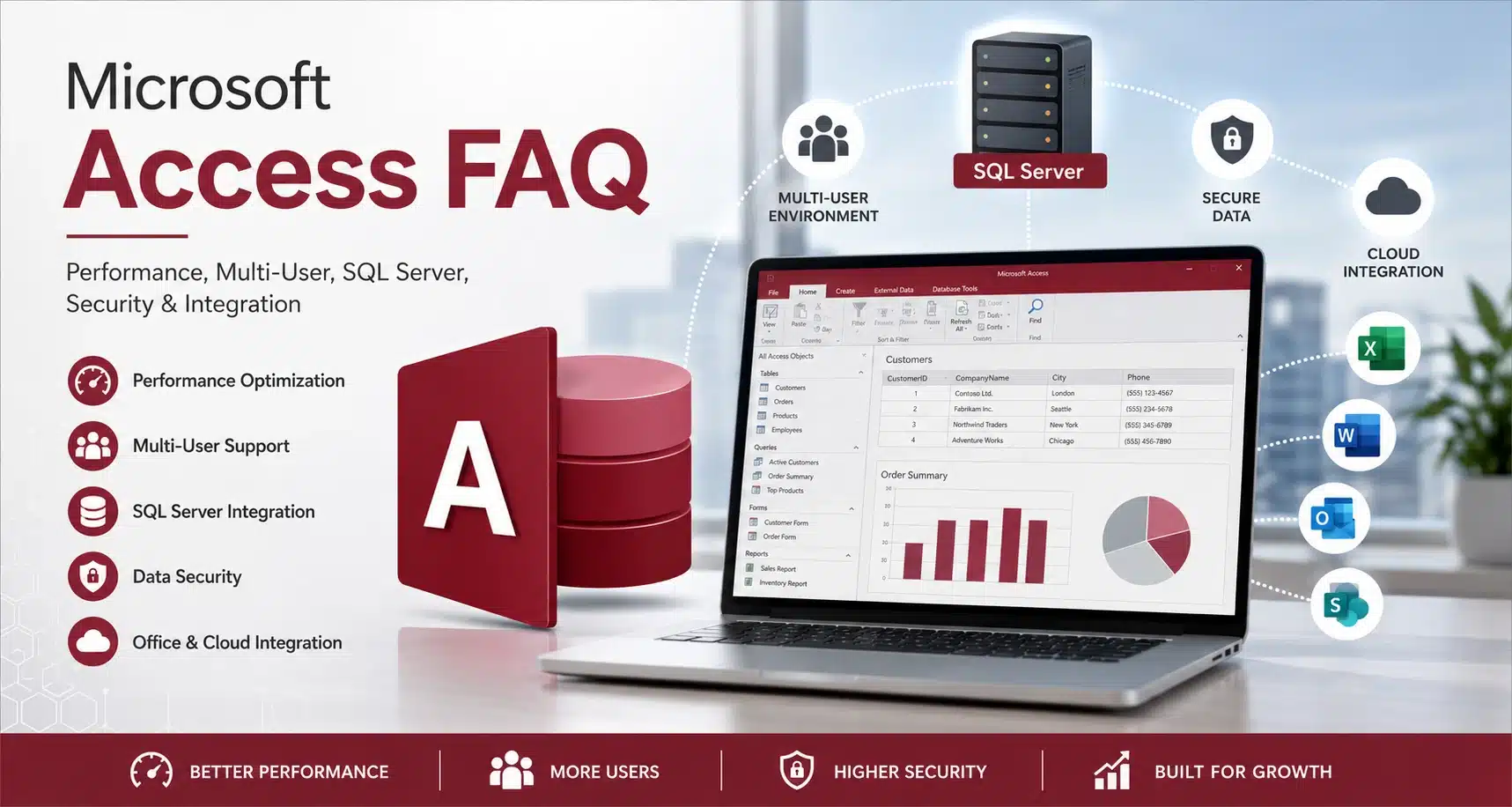
Frequently Asked Questions About Microsoft Access
Whether you're new to Microsoft Access or managing a large multi-user application, these frequently asked questions cover the topics we are asked most often. Learn about database size limits, performance, SQL Server integration, security, corruption prevention, Microsoft Access Runtime, and best practices for building reliable business applications.
What Is the Maximum Size of a Microsoft Access Database?
The maximum file size for a single Microsoft Access database (.ACCDB) is 2 GB, excluding linked tables.
The most common causes of large Access files are:
- Embedded files (PDFs, images, documents)
- Background images in forms and reports
Best practice:
- Store files in a network folder
- Save only the file path in Access
- Use background colors instead of images
Can Multiple Users Use a Microsoft Access Database at the Same Time?
Yes — Microsoft Access fully supports multi‑user environments when configured correctly.
The recommended approach is a Front‑End / Back‑End split:
- Back‑End: Tables stored on a network server
- Front‑End: Forms, queries, reports, and VBA stored on each user’s workstation
Learn more about proper deployment: Access Front‑End Deployment Best Practices
Workstations require either:
- The free Microsoft Access Runtime
- A full version of Microsoft Access (32‑bit or 64‑bit)
Are Microsoft Access Databases Easily Corrupted?
Not when designed and implemented correctly. Most corruption is caused by environmental issues, not Access itself.
Common causes of corruption include:
- Multiple users opening the same file without a Front‑End / Back‑End split
- Opening Access files through a VPN (not supported)
- Network connection drops between workstation and server
In a proper client‑server environment, corruption is rare and usually resolved by replacing the Front‑End file.
If corruption occurs more than once every few months, the database design or network environment should be evaluated.
For full prevention strategies, see: Prevent Microsoft Access Database Corruption
To further Prevent Corruption Issues Read Our Microsoft Access Best Practices
How Many Simultaneous Users Can Access Support?
Technically up to 255 concurrent connections (a TCP/IP limitation). In real‑world environments, 2–50 users is typical depending on:
- Network speed
- Query design
- Form complexity
- Record volume
Every Mulit-User Access database should be Split into a Fron-End and Basck-End. Review our guide here For Step By Step Instructions
Need Some Tips (And Pitfalls) on Mulit-User Applications. See our guide Multi-User Database Tips and Guide
Does Microsoft Access Slow Down Over Time?
Yes — performance can degrade as data grows, especially when using the Access JET/ACE engine.
Performance depends on:
- Workstation hardware
- Network cabling (CAT5 vs CAT6)
- Switch speeds (100Mb vs 1Gb)
- Wired vs wireless connections
- Record count
- Number of simultaneous users
- Query and form design
When performance becomes an issue, migrating the Back‑End to SQL Server dramatically improves speed and stability.
Is Your Database Slow? Check out this Guide How To Fix Slow Access Databases
Improve performance with: Microsoft Access Performance Checklist
Ever Consider Migrating to SQL Server Express for the Back-End or Data Side of your Microsoft Access database? If So Read Our Access to SQL Server Migration Guide
Can Access Integrate with Excel, Word, and Outlook?
Yes — Microsoft Access integrates seamlessly with all Microsoft Office applications.
Examples:
- Generate Outlook emails automatically
- Create Outlook tasks, appointments, and contacts
- Export data to Excel for analysis
- Perform Word mail merges directly from Access
Access also integrates with Office 365 and SharePoint for cloud‑based workflows.
Can Access Integrate with SQL Server?
Yes — Access works extremely well with SQL Server in a Front‑End / Back‑End configuration.
Advantages
- Scalability
- Improved performance
- Stronger security
- Larger database capacity
- Access to SQL Server features (SSRS, SSIS, jobs, maintenance plans)
SQL Server Express (free) supports 4–10 GB databases depending on version. Licensed SQL Server versions support much larger sizes.
For More Information See Our Access vs SQL Server Comparison Guide
Disadvantages
- Requires SQL Server expertise
- Higher support skill level
Can Access Integrate with 3rd‑Party Software?
Yes — most business systems provide APIs, ODBC drivers, or data exchange options.
Examples:
- QuickBooks API integration
- ERP/MRP ODBC connections
- CSV/XML/JSON data exchange
Can I Migrate My Access Data to SQL Server?
Absolutely. SQL Server includes import tools specifically designed for Access migrations.
After importing, review:
- Primary keys
- Default values
- Bit fields
- Indexes
Best practice: verify table structure and field formats after migration.
Need Help? Read Our Access to SQL Server Migration Guide
Do Access Version Upgrades Break Existing Databases?
Rarely. Microsoft maintains strong backward compatibility.
The only major disruption occurred with the introduction of 64‑bit Office, which required updating some VBA API declarations.
What Security Options Exist for Microsoft Access?
Security depends on your configuration:
- User‑level security: Read‑only vs read‑write permissions
- Password protection: Prevents unauthorized file access
- SQL Server security: When using SQL Server as the Back‑End
For strong security, SQL Server is recommended.
For full security best practices, see: Microsoft Access Security Hardening Guide
How Do I Get Microsoft Access?
Microsoft Access is available through:
- Microsoft 365 subscriptions
- Office Professional
- Standalone Access licenses
- Authorized software resellers
Do I Need Access Installed to Use an Access Application?
Yes — you need either:
- The full version of Microsoft Access
- The free Microsoft Access Runtime
Do I Need Access to Make Design Changes?
Yes — design changes require the full version of Microsoft Access. The Runtime version cannot modify objects.
Learn more: Microsoft Access Runtime Deployment Guide
Should I Use 32‑bit or 64‑bit Microsoft Access?
Most organizations still use 32‑bit Access due to compatibility with legacy VBA libraries. However, 64‑bit Access is recommended for:
- Large datasets
- Memory‑intensive processes
- Modern Windows environments
When Should I Upgrade Access to SQL Server?
Upgrade when:
- Performance slows due to large data volume
- You need stronger security
- You have 10+ simultaneous users
- You need enterprise‑grade reporting or automation
Learn more: Access to SQL Server Migration Guide
Explore integration options: Access + SQL Server Integration
Is Microsoft Access Still Supported?
Yes. Microsoft Access is actively supported and continues to be included with Microsoft 365 and Office LTSC. Microsoft regularly releases security updates, bug fixes, and compatibility improvements, making Access a reliable platform for building and maintaining business applications.
Microsoft Access remains widely used for inventory management, customer databases, manufacturing systems, quality management, project tracking, and custom business applications.
Is Microsoft Access Free?
Microsoft Access is not included with every Microsoft 365 subscription. The full version is available with select Microsoft 365 plans, Office Professional, or as a standalone purchase.
If users only need to run an existing Access application, Microsoft offers the Microsoft Access Runtime free of charge. The Runtime allows users to run forms, reports, and applications but does not allow database design changes.
Learn more: Microsoft Access Runtime Deployment Guide
Can Microsoft Access Be Used as an ERP System?
Yes. Microsoft Access is an excellent platform for developing custom ERP (Enterprise Resource Planning) systems for small and mid-sized businesses. Many organizations successfully use Access to manage purchasing, inventory, production, sales orders, shipping, accounting, document control, and quality management.
As business requirements grow, the Microsoft Access front-end can be combined with SQL Server to provide enterprise-level scalability while preserving the existing user interface.
Learn more about our manufacturing ERP solution: SimpleManufacturing™ ERP
Can Microsoft Access Connect to MySQL?
Yes. Microsoft Access can connect to MySQL databases using ODBC drivers. Linked tables, pass-through queries, and VBA automation allow Access to work with MySQL while providing a familiar desktop interface for users.
This approach allows organizations to keep their existing Access application while moving data to a more scalable database platform.
Can Microsoft Access Connect to Oracle?
Yes. Microsoft Access supports Oracle databases through Oracle's ODBC drivers and other database connectivity tools. Access can retrieve, edit, and report on Oracle data using linked tables, pass-through queries, or custom VBA code.
This allows organizations to build custom reporting and data entry applications without replacing their Oracle database.
Can Microsoft Access Connect to Azure SQL Database?
Yes. Microsoft Access works very well with Azure SQL Database. Using linked tables and pass-through queries, Access provides a familiar front-end while Azure SQL delivers cloud-based scalability, automated backups, high availability, and enhanced security.
This architecture is ideal for organizations with remote users or multiple office locations.
Can Microsoft Access Be Used for Manufacturing?
Absolutely. Microsoft Access has been used successfully for manufacturing applications for decades. Custom Access solutions can manage Bills of Materials (BOMs), inventory control, purchasing, work orders, production scheduling, shipping, receiving, and quality management.
Many manufacturers later migrate only the database to SQL Server while keeping their existing Access application, providing improved performance without retraining users.
Learn more: SimpleManufacturing™ ERP
Can Microsoft Access Be Used for ISO 9001 Quality Management?
Yes. Microsoft Access is frequently used to develop ISO 9001 Quality Management Systems (QMS). Organizations use Access to manage document control, corrective actions (CAPA), nonconforming material, calibration, employee training, internal audits, and supplier management.
Custom Access applications can automate quality processes while maintaining complete audit trails and traceability.
Can Microsoft Access Be Used for AS9100 Compliance?
Yes. Aerospace manufacturers commonly use Microsoft Access to manage AS9100 quality requirements, including document control, calibration, first article inspection (FAI), nonconforming material reports (NCMRs), corrective actions, employee training, and supplier quality.
When combined with SQL Server, Microsoft Access provides a scalable and cost-effective platform for AS9100-compliant quality management systems.
Learn more: AS9100 Quality Management System
Is Microsoft Access Good for Small Businesses?
Yes. Microsoft Access is one of the most cost-effective database platforms for small and medium-sized businesses. It enables organizations to replace spreadsheets with custom business applications tailored to their unique processes.
Access is ideal for customer management, inventory tracking, quoting, job costing, manufacturing, service management, quality systems, and countless other business applications.
As your business grows, Microsoft Access can continue to serve as the front-end while SQL Server provides enterprise-class scalability and security.
Need Help With Microsoft Access?
We specialize in Microsoft Access development, SQL Server upgrades, performance optimization, and multi‑user deployments.
Contact Us for Microsoft Access Support