
Access to SQL Server Migration Process: Steps, Best Practices, and Pitfalls
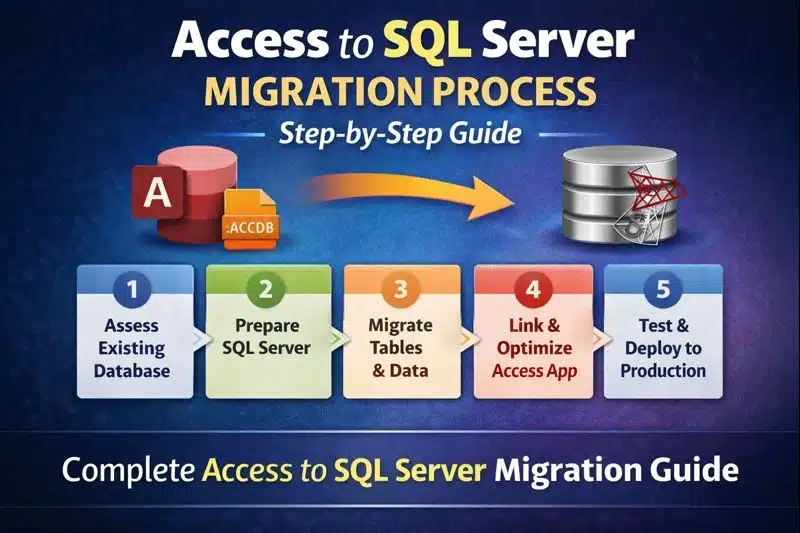
Access to SQL Server Migration
The Access to SQL Server migration process is the most reliable way to improve performance, scalability, and long‑term stability for growing Access applications.
For a deeper overview of SQL Server integration, see our SQL Server Integration for Access.
For multi‑user performance considerations before migrating, see Multi‑User Microsoft Access Database Tips.
Why Migrate from Access to SQL Server?
Microsoft Access is excellent for small systems, but it was never designed for high concurrency, large datasets, or mission‑critical workloads. SQL Server provides a true client‑server architecture that eliminates many of the risks associated with file‑based databases.
- Improved multi‑user performance
- Reduced risk of database corruption
- Stronger security and auditing
- Reliable backup and recovery
For multi‑user stability tips, review our Multi‑User Microsoft Access Database Guide.
To reduce corruption risk before migration, review Prevent Microsoft Access Database Corruption.
When Is It Time to Migrate an Access Database?
Not every Microsoft Access database needs SQL Server immediately. Many Access applications successfully support small teams for years. However, as databases grow in size and complexity, organizations often reach a point where a SQL Server back-end provides better performance, reliability, and scalability.
Common indicators that it's time to migrate include:
- More than 10–20 concurrent users
- Frequent database corruption
- Large databases approaching the Access size limit
- Slow forms, reports, or queries
- Increasing security or audit requirements
- Need for remote access or integration with other business systems
Migrating before these issues become critical reduces downtime and allows organizations to modernize their applications with minimal disruption.
Overview of the Access to SQL Server Migration Process
A successful migration is not just about moving tables. It requires planning, redesign, and validation to avoid downtime and data issues.
- Assessment and planning
- Schema and data migration
- Application updates
- Testing and validation
- Deployment and optimization
A well‑planned Access to SQL Server migration process ensures that schema changes, data conversion, and front‑end updates happen smoothly without breaking functionality.
Step 1: Assess the Existing Access Database
The first step is understanding what you already have. This includes reviewing:
- Table structures and relationships
- Data volume and growth rate
- Queries, forms, and reports
- Business rules embedded in VBA
- Temp, Local, and Linked Tables
Determine whether temporary or local tables should be moved to SQL Server, and remove tables that are no longer used. Skipping this step often leads to performance problems or broken functionality after migration.
For optimization guidance, see our Access Database Optimization Guide.
If you manage multiple Access files, consider Consolidating Microsoft Access Databases before migrating.
Step 2: Prepare SQL Server
SQL Server must be properly configured before any data is moved. For many organizations, SQL Server Express is a cost‑effective starting point.
- Install SQL Server Express on a local network server
- Install SQL Server Management Studio (SSMS)
- Create the database and security roles
- Define naming conventions
- Configure backups and maintenance
- Set appropriate permissions
Access vs SQL Server Field Type Differences
Understanding how field types differ is critical. While many appear similar, there are important behavioral and formatting differences that affect performance, accuracy, and application logic.
For architecture and configuration guidance, see SQL Server Integration for Microsoft Access.
Core Data Type Mapping
| Microsoft Access Field Type | SQL Server Data Type | Notes |
|---|---|---|
| Short Text | VARCHAR(n) / NVARCHAR(n) | Use NVARCHAR for Unicode support |
| Long Text (Memo) | VARCHAR(MAX) / NVARCHAR(MAX) | Memo fields convert to MAX types |
| Number (Byte) | TINYINT | Range 0–255 |
| Number (Integer) | SMALLINT | 2‑byte integer |
| Number (Long Integer) | INT | Most common numeric mapping |
| Number (Single) | REAL | Floating‑point precision |
| Number (Double) | FLOAT | Watch rounding differences |
| Number (Decimal) | DECIMAL(p,s) | Precision and scale must be defined |
| Currency | DECIMAL(19,4) | Preferred for financial accuracy |
| Date/Time | DATETIME2 | Recommended for precision |
| Yes/No | BIT | Access uses -1/0, SQL uses 1/0 |
| AutoNumber | INT IDENTITY(1,1) | IDENTITY replaces AutoNumber |
| Hyperlink | VARCHAR(MAX) | Stored as text |
| Attachment | VARBINARY(MAX) | Often better stored externally |
| OLE Object | VARBINARY(MAX) | Not recommended |
| Lookup Wizard | Foreign Key | Convert to relational design |
| Replication ID | UNIQUEIDENTIFIER | Same concept |
| Calculated | Computed Column / View | Move logic to SQL |
Key Behavioral Differences
- Access stores True as -1; SQL Server uses 1
- DATETIME2 offers higher precision
- Memo fields become VARCHAR(MAX) or NVARCHAR(MAX)
- DECIMAL(19,4) is safer than MONEY
- Lookup fields must be redesigned using foreign keys
Plan Your SQL Server Indexing Strategy
Many Access databases rely on indexes that were created years ago and no longer match current business processes. During migration, every primary key, foreign key, and frequently searched field should be reviewed to ensure SQL Server can retrieve data efficiently.
Well-designed indexes reduce query execution time, improve report performance, and support hundreds of thousands or even millions of records without noticeable slowdowns.
Learn more in our Access Table Indexing Best Practices.
Step 3: Migrate Tables and Data
Tables can be migrated using SQL Server Migration Assistant (SSMA), the SQL Import Wizard, or custom scripts.
- Convert data types correctly
- Preserve primary keys and indexes
- Rebuild relationships using foreign keys
- Validate record counts and data integrity
Common Issues After Import
- Primary key not defined
- No default value for BIT fields
- Allow Nulls settings not aligned with business rules
After migration, indexing becomes even more important. Review Access Table Indexing Best Practices.
Keep Microsoft Access as the Front-End
A common misconception is that migrating to SQL Server means replacing Microsoft Access. In most successful projects, Access continues to provide the forms, reports, VBA automation, and user interface while SQL Server stores and manages the data.
This hybrid architecture combines the rapid application development capabilities of Access with the reliability, security, and scalability of SQL Server.
Learn more about this architecture in SQL Server Integration for Microsoft Access.
Step 4: Update the Access Front-End
Most organizations keep Access as the front‑end application. The Access file is updated to link to SQL Server tables instead of local data.
- Replace local tables with linked tables
- Optimize queries for SQL Server
- Move business logic to stored procedures where appropriate
For deployment guidance, see our Access Front‑End Deployment Guide.
For deployment environments, see the Microsoft Access Runtime Deployment Guide.
Step 5: Test, Optimize, and Deploy
Thorough testing is critical before going live.
- Verify reports and exports
- Test multi‑user performance
- Review execution plans and indexes
- Train users on workflow changes
Performance Improvements After Migration
Organizations that properly migrate to SQL Server frequently experience significant improvements in application performance. While results vary by database design and hardware, common benefits include:
- Faster searches and filtered forms
- Improved report generation
- Better multi-user responsiveness
- Reduced record locking conflicts
- More reliable backups
- Greater stability under heavy workloads
Performance improvements are maximized when migration includes query optimization, indexing, and proper SQL Server configuration rather than simply moving tables.
Common Migration Pitfalls to Avoid
- Upsizing without redesigning queries
- Ignoring security and permissions
- Failing to test under real‑world load
- Leaving too much logic in Access VBA
For performance tuning, see our Access Performance Checklist.
Security must also be reviewed post‑migration. See Microsoft Access Database Security Guidelines.
Following a structured Access to SQL Server migration process reduces risk, prevents downtime, and ensures your new SQL Server back‑end performs as expected.
Our Access to SQL Server Migration Process
Every migration project begins with a detailed assessment of your existing Access database. We review table structures, VBA code, reports, forms, security, performance bottlenecks, and business workflows before making recommendations.
Our migration process preserves the familiar Microsoft Access interface whenever possible while replacing the file-based database with a secure SQL Server back-end. This approach minimizes user retraining and reduces project risk.
After deployment, we continue optimizing performance, implementing backups, improving security, and adding new features as your business grows.
Should You Migrate Yourself or Hire an Expert?
Simple databases can sometimes be migrated internally. However, complex systems, multi‑user environments, and regulated industries benefit greatly from expert guidance — especially when uptime, data integrity, and compliance matter.
Free Access to SQL Server Migration Review
We'll evaluate your existing Microsoft Access application and identify the safest, most cost-effective migration strategy.
- Review your database architecture
- Identify performance bottlenecks
- Recommend SQL Server improvements
- Estimate migration effort
- Answer your technical questions