
SQL Server Express Installation Guide for Microsoft Access (2026)
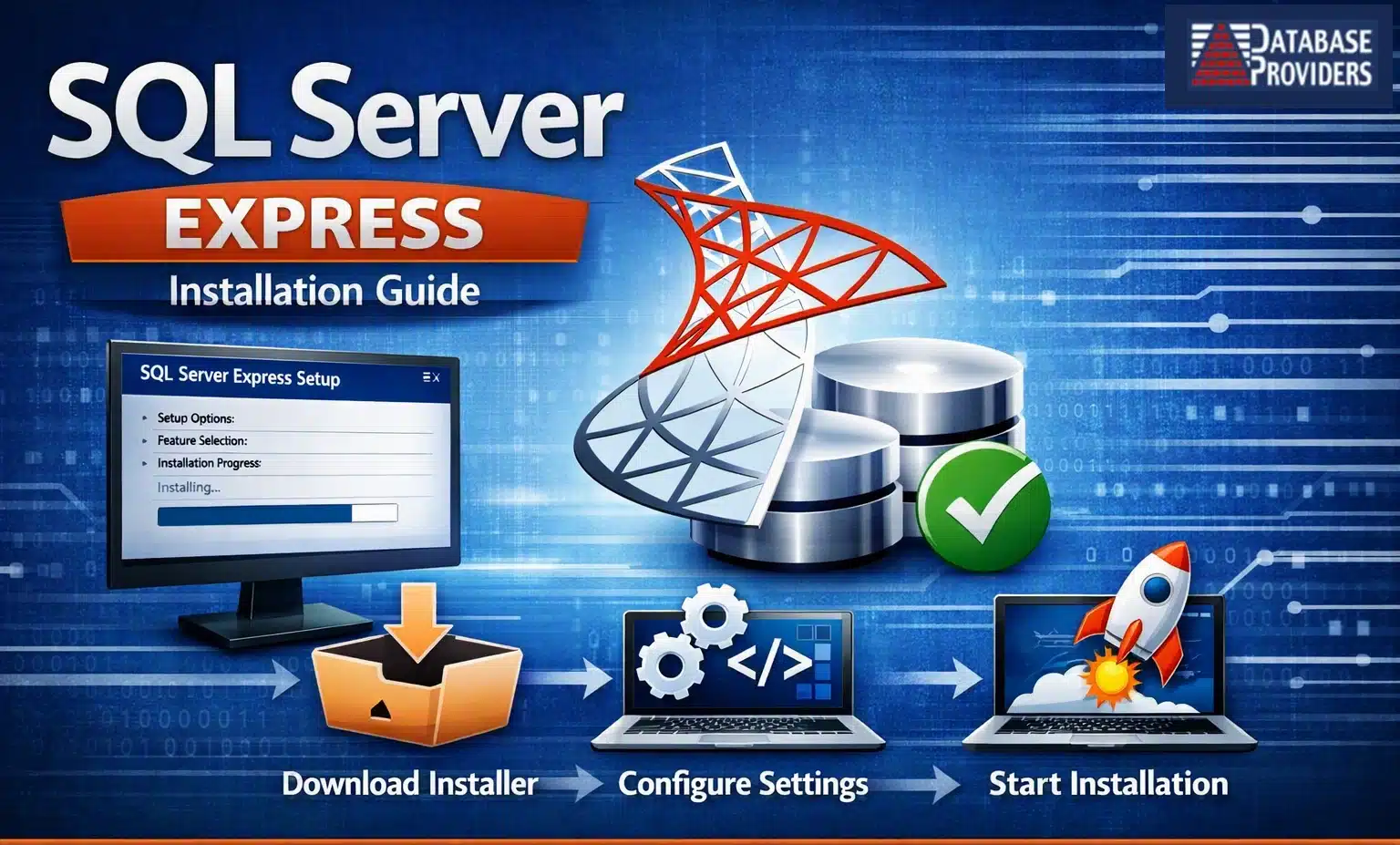
This step-by-step SQL Server Express Installation Guide explains how to download, install, and configure Microsoft SQL Server Express for Microsoft Access applications. Whether you're upgrading from an Access back-end to SQL Server Express or installing a new database server, this guide covers everything you need to improve performance, scalability, reliability, and security while preserving your existing Microsoft Access front-end.
Why Install SQL Server Express?
Microsoft SQL Server Express is a free, enterprise-class relational database engine that provides a significant upgrade over a traditional Microsoft Access (.ACCDB) back-end. While Microsoft Access remains one of the best rapid application development tools available, SQL Server Express provides dramatically improved multi-user performance, stronger security, higher reliability, and much better scalability.
The ideal architecture combines the strengths of both platforms:
- Microsoft Access as the front-end application
- SQL Server Express as the secure database back-end
This architecture allows organizations to continue using their existing forms, reports, VBA code, macros, and business logic while eliminating many of the limitations associated with Access data files.
Learn more in our Microsoft Access vs SQL Server Comparison Guide.
Planning a migration? Review our Access to SQL Server Migration Guide.
Benefits of SQL Server Express for Microsoft Access Applications
SQL Server Express offers enterprise database features without licensing costs. Organizations can continue developing their Microsoft Access applications while gaining the reliability of Microsoft's SQL Server platform.
- Free download from Microsoft
- Supports true client-server architecture
- Improved multi-user performance
- Reduced database corruption risk
- Advanced backup and recovery options
- Role-based security
- Stored Procedures and Views
- Better reporting performance
- Transaction processing with rollback protection
- Excellent integration with Microsoft Access
SQL Server Express is often the first upgrade organizations make when their Access database begins experiencing slow performance or increased user activity.
Improve performance even further by reviewing our Microsoft Access Database Optimization Guide.
SQL Server Express System Requirements
Before beginning the installation, verify that your computer or server meets Microsoft's minimum system requirements.
| Requirement | Recommended |
|---|---|
| Operating System | Windows 10, Windows 11, Windows Server 2019 or newer |
| Processor | 64-bit Intel or AMD |
| Memory | 8 GB minimum (16 GB preferred) |
| Disk Space | 10 GB available |
| Network | Gigabit Ethernet recommended |
SQL Server Express supports databases up to 10 GB, making it an excellent solution for many small and medium-sized business applications.
Step 1 – Download SQL Server Express
Always download SQL Server Express directly from Microsoft to ensure you receive the latest supported version and security updates.
We recommend installing:
- Microsoft SQL Server Express 2022
- SQL Server Management Studio (SSMS)
SQL Server Management Studio provides the administrative tools needed to create databases, manage security, perform backups, and troubleshoot performance.
After downloading both installers, close all Microsoft Access applications before beginning installation.
Step 2 – Install SQL Server Express
Run the SQL Server Express installer using Administrator privileges.
The installer presents several installation options. For most Microsoft Access applications, choose:
- Basic Installation – Recommended for most users
- Custom Installation – Recommended if installing multiple SQL Server instances
During installation, SQL Server will copy program files, configure the SQL Server service, create the database engine, and install required components.
Installation typically completes in 5–15 minutes depending on system performance.
Step 3 – Choose Your SQL Server Instance Name
Every SQL Server installation uses an instance name. This identifies the database engine running on the computer.
Microsoft installs SQL Server Express using the default named instance:
SQLEXPRESS
Most Microsoft Access applications connect using:
- SERVERNAME\SQLEXPRESS
- LOCALHOST\SQLEXPRESS
- ComputerName\SQLEXPRESS
Unless you have multiple SQL Server installations, leaving the default instance name is usually the best choice.
Later in this guide we'll show you how Microsoft Access connects to this SQL Server instance using ODBC.
Step 4 – Choose Windows Authentication or SQL Server Authentication
SQL Server supports two authentication methods.
| Authentication Method | Recommended Use |
|---|---|
| Windows Authentication | Best for most business environments |
| Mixed Mode (SQL Authentication) | Required for some remote applications and third-party software |
Windows Authentication integrates with Active Directory and Windows security, eliminating the need for users to remember additional passwords.
Mixed Mode enables SQL logins such as "sa" and other SQL users, which may be required for external integrations.
For most Microsoft Access applications running on an internal network, Windows Authentication is the recommended option.
Learn more in our Microsoft Access Database Security Guidelines.
Step 5 – Install SQL Server Management Studio (SSMS)
SQL Server Management Studio (SSMS) is Microsoft's primary administration tool for SQL Server. While SQL Server Express provides the database engine, SSMS provides the interface used to manage databases, users, security, backups, and performance.
After downloading SSMS from Microsoft:
- Launch the SSMS installer
- Accept the license agreement
- Choose the default installation location
- Complete the installation
- Restart the computer if prompted
Once installed, launch SQL Server Management Studio and connect to your SQL Server Express instance using:
- ComputerName\SQLEXPRESS
- Localhost\SQLEXPRESS
- SERVERNAME\SQLEXPRESS
SSMS is an essential tool for every Microsoft Access developer using SQL Server Express.
Step 6 – Verify the SQL Server Service Is Running
Before creating databases or connecting Microsoft Access, verify that the SQL Server service is running properly.
- Open Windows Services
- Locate SQL Server (SQLEXPRESS)
- Verify Status = Running
- Verify Startup Type = Automatic
If the service is stopped, start it and review the Windows Event Log for errors.
SQL Server services should automatically start whenever the computer reboots.
Step 7 – Enable TCP/IP Connections
By default, SQL Server Express may not allow remote TCP/IP connections. This setting must be enabled if:
- Users connect from other workstations
- Microsoft Access runs on multiple PCs
- You are using ODBC connections across a network
Open SQL Server Configuration Manager and navigate to:
SQL Server Network Configuration → Protocols for SQLEXPRESS
Enable:
- TCP/IP
Disable unused protocols unless specifically required.
After enabling TCP/IP, restart the SQL Server service.
Step 8 – Configure SQL Server TCP/IP Ports
SQL Server commonly uses TCP Port 1433 for client connections.
To configure the port:
- Open SQL Server Configuration Manager
- Select TCP/IP Properties
- Open the IP Addresses tab
- Specify TCP Port 1433
- Clear Dynamic Ports if desired
Using a static port simplifies Microsoft Access ODBC configuration and troubleshooting.
Step 9 – Configure Windows Firewall
Windows Firewall may block SQL Server network traffic. If users connect from other computers, create an inbound firewall rule.
Recommended configuration:
- TCP Port 1433
- SQL Server Database Engine
- Private Network Profile
After creating the firewall rule, test connectivity from another workstation.
Many connection problems are caused by firewall restrictions rather than SQL Server itself.
Step 10 – Create Your First SQL Server Database
Once SQL Server Express is running, create your first database.
- Open SQL Server Management Studio
- Connect to SQLEXPRESS
- Right-click Databases
- Select New Database
- Enter a database name
- Click OK
SQL Server automatically creates:
- Primary Data File (.MDF)
- Transaction Log File (.LDF)
Your database is now ready for tables, views, stored procedures, and Microsoft Access integration.
Step 11 – Create SQL Server Users and Permissions
Security should be configured before deploying your application.
Best practices include:
- Create individual user accounts
- Avoid using the SA account for daily operations
- Assign least-privilege permissions
- Use Windows Authentication whenever possible
- Document all security changes
SQL Server security is significantly more powerful than native Microsoft Access security and is one of the primary reasons organizations migrate to SQL Server Express.
Learn more in our Microsoft Access Security Guidelines.
Step 12 – Configure Database Backups
Backups should be configured immediately after installation.
Even though SQL Server Express does not include SQL Agent, backups can still be automated using:
- Windows Task Scheduler
- Maintenance scripts
- PowerShell
- Third-party backup tools
Recommended backup schedule:
- Daily full backups
- Weekly backup verification
- Offsite backup storage
- Periodic restore testing
A backup is only valuable if it can be restored successfully.
Step 13 – Connect Microsoft Access to SQL Server Express
Once SQL Server Express is installed, Microsoft Access can connect using ODBC linked tables.
Typical connection methods include:
- ODBC DSN connections
- DSN-less VBA connections
- Pass-through queries
- Linked SQL Server tables
Most organizations continue using Microsoft Access forms, reports, and VBA code while SQL Server Express manages the data.
This architecture provides the best balance of performance, flexibility, cost, and scalability.
Learn more in our SQL Server Integration for Microsoft Access Guide.
Considering a complete migration? Review our Access to SQL Server Migration Process.
Step 7 – Choose the Installation Type
SQL Server Express offers several installation options. For most Microsoft Access applications, selecting the Basic installation is sufficient. If you need to customize installation folders, instance names, authentication modes, or features, choose Custom.
Basic Installation
- Fastest installation option
- Automatically installs SQL Server Express with recommended defaults
- Ideal for most small business Access applications
- Creates a default SQL Server instance
Custom Installation
- Choose installation directories
- Create a named SQL Server instance
- Select authentication mode
- Install additional SQL Server components
- Recommended for experienced administrators
If you are planning to migrate an existing Microsoft Access application, a custom installation usually provides greater flexibility for future growth.
Learn more about migration planning in our Access to SQL Server Migration – Best Practices & Pitfalls .
Step 8 – Configure Authentication Mode
During installation SQL Server asks how users will authenticate to the database.
Windows Authentication (Recommended)
- Uses existing Windows user accounts
- No separate SQL passwords required
- More secure for most organizations
- Works well with Microsoft Access applications
Mixed Mode Authentication
- Supports both Windows logins and SQL logins
- Required by some third-party software
- Requires creating a secure SA password
Unless your application specifically requires SQL logins, Windows Authentication provides the highest level of security and the simplest administration.
For additional security recommendations, see our Microsoft Access Database Security Guidelines .
Step 9 – Complete the Installation
After confirming your selections, SQL Server Express installs all required services, creates the database engine, and configures Windows services automatically.
The installation typically requires:
- 5–15 minutes on most computers
- A system restart in some environments
- Administrative permissions
Once installation completes successfully, the SQL Server service starts automatically.
Step 10 – Install SQL Server Management Studio (SSMS)
SQL Server Management Studio (SSMS) is Microsoft's free administration tool used to manage SQL Server databases.
With SSMS you can:
- Create databases
- Manage tables
- Create indexes
- Write SQL queries
- Back up databases
- Restore databases
- Manage security
- Monitor performance
Although SQL Server Express includes the database engine, SSMS is downloaded separately and is strongly recommended.
Verify Your SQL Server Express Installation
Before migrating your Microsoft Access application, verify that SQL Server Express installed correctly.
Confirm the following:
- SQL Server service is running
- SQL Server Management Studio connects successfully
- A test database can be created
- Windows Authentication works correctly
- Firewall rules allow local connections
Completing these checks ensures your database server is ready for production use.
Common SQL Server Express Installation Problems
Installation Fails
Most installation failures are caused by missing Windows updates, insufficient administrator permissions, antivirus software, or previous SQL Server installations that were not removed completely.
Cannot Connect to SQL Server
Verify that the SQL Server service is running, the correct server name is being used, and Windows Firewall is allowing SQL Server connections.
Named Instance Confusion
If SQL Server was installed as a named instance, be sure to include both the computer name and instance name when connecting.
Example:
SERVERNAME\SQLEXPRESS
Microsoft Access Cannot Connect
Verify your ODBC driver, SQL Server permissions, Windows Authentication settings, and the connection string used by your Access application.
For complete integration guidance, see our SQL Server Integration for Microsoft Access .
How to Connect Microsoft Access to SQL Server Express
Once SQL Server Express is installed, the next step is connecting your Microsoft Access front-end to the SQL Server database. This allows you to retain your existing forms, reports, queries, and VBA code while moving the data to a much more reliable client-server platform.
The most common connection methods include:
- ODBC Linked Tables
- DSN-less ODBC connections
- Pass-Through Queries
- Stored Procedures
Most organizations begin with linked tables and gradually migrate performance-critical processes to stored procedures as their application grows.
Learn more in our SQL Server Integration for Microsoft Access .
Common SQL Server Express Installation Problems
Most SQL Server Express installation issues are straightforward to resolve when identified early. Common problems include:
- SQL Server Browser service not running
- TCP/IP protocol disabled
- Windows Firewall blocking SQL Server
- Incorrect SQL Server instance name
- Authentication mode configured incorrectly
- Missing SQL Server Native Client or ODBC Driver
- Insufficient Windows permissions
Verifying these settings immediately after installation prevents most connection problems experienced by Microsoft Access users.
SQL Server Express Maintenance Best Practices
After installation, SQL Server Express should be maintained just like any enterprise database system.
- Create scheduled database backups
- Monitor database growth
- Rebuild fragmented indexes
- Update statistics regularly
- Review SQL Server logs
- Monitor disk space
- Verify backup recovery procedures
Even though SQL Server Express is free, it includes many of the same reliability features found in Enterprise editions.
Frequently Asked Questions
Is SQL Server Express really free?
Yes. Microsoft SQL Server Express is completely free to download, install, and use for commercial applications.
Can Microsoft Access connect directly to SQL Server Express?
Yes. Microsoft Access connects using ODBC linked tables, pass-through queries, and stored procedures, allowing Access to remain the user interface while SQL Server stores the data.
Do I need SQL Server Management Studio?
Yes. SQL Server Management Studio (SSMS) is highly recommended because it allows you to manage databases, users, backups, security, indexes, stored procedures, and performance.
Should I use Windows Authentication or SQL Authentication?
Windows Authentication is recommended whenever possible because it provides stronger security and easier user management. SQL Authentication is useful for external applications or environments where Windows authentication is not practical.
Can I upgrade from SQL Server Express later?
Yes. Databases created in SQL Server Express can be upgraded to Standard or Enterprise editions without modifying your Microsoft Access application.
What is the SQL Server Express database size limit?
Current versions of SQL Server Express support databases up to 10 GB. Most Microsoft Access applications never reach this limit, and upgrading later is straightforward if needed.
Why SQL Server Express Is the Best Upgrade for Microsoft Access
For organizations that have outgrown an Access back-end database, SQL Server Express offers the ideal next step. It provides enterprise-class reliability without requiring expensive licensing or major application redesign.
By keeping Microsoft Access as the front-end while moving your data into SQL Server Express, you gain:
- Better multi-user performance
- Improved security
- Reduced database corruption
- Larger database capacity
- Professional backup and recovery
- Future scalability to full SQL Server editions
This hybrid architecture has become the preferred solution for thousands of organizations that rely on Microsoft Access for day-to-day operations.
Compare the platforms in our Microsoft Access vs SQL Server Comparison Guide .
Need Help Installing SQL Server Express?
We specialize in Microsoft Access development, SQL Server Express installation, database migrations, performance tuning, and multi-user system design. Whether you're installing SQL Server for the first time or upgrading an existing Access application, our experts can help.
Call Us: 1-858-335-6421 (PST)
Contact Us for SQL Server Express Installation Assistance